How to Add Bulk Values in Picklist Fields in Kylas CRM
How to Add Bulk Values in Picklist Fields in Kylas CRM
Managing picklist fields efficiently is crucial for maintaining clean, structured, and standardized CRM data. When dealing with large datasets—such as product categories, cities, industries, or lead sources—manually adding values one by one becomes time-consuming.
Kylas CRM solves this with an easy “Bulk Add ” option, allowing you to insert multiple picklist values at once using comma-separated entries.
This article explains how to use this feature step-by-step.
Table of Contents
Introduction
-
Prerequisites
-
Steps to Add Bulk Values in Picklist Fields
-
Use Cases
-
Benefits
-
Conclusion
Overview
Picklist fields help maintain consistent and structured data in your CRM by restricting entries to predefined options. Kylas CRM allows you to create picklist fields and populate them with values in bulk—making configuration faster and more efficient.
This feature is especially useful during onboarding or when large sets of categorical data need to be added at once.
Prerequisites
Before adding picklist values in bulk:
-
You must have Admin access or Customization permissions in Kylas CRM.
-
You should know which entity/module (Lead, Contact, Deal, Company, Product, etc.) you are adding the field to.
-
Ensure that the field you are creating is of type Picklist.
-
Steps to Add Bulk Values in Picklist Fields:
Follow the process below to add picklist options in bulk:
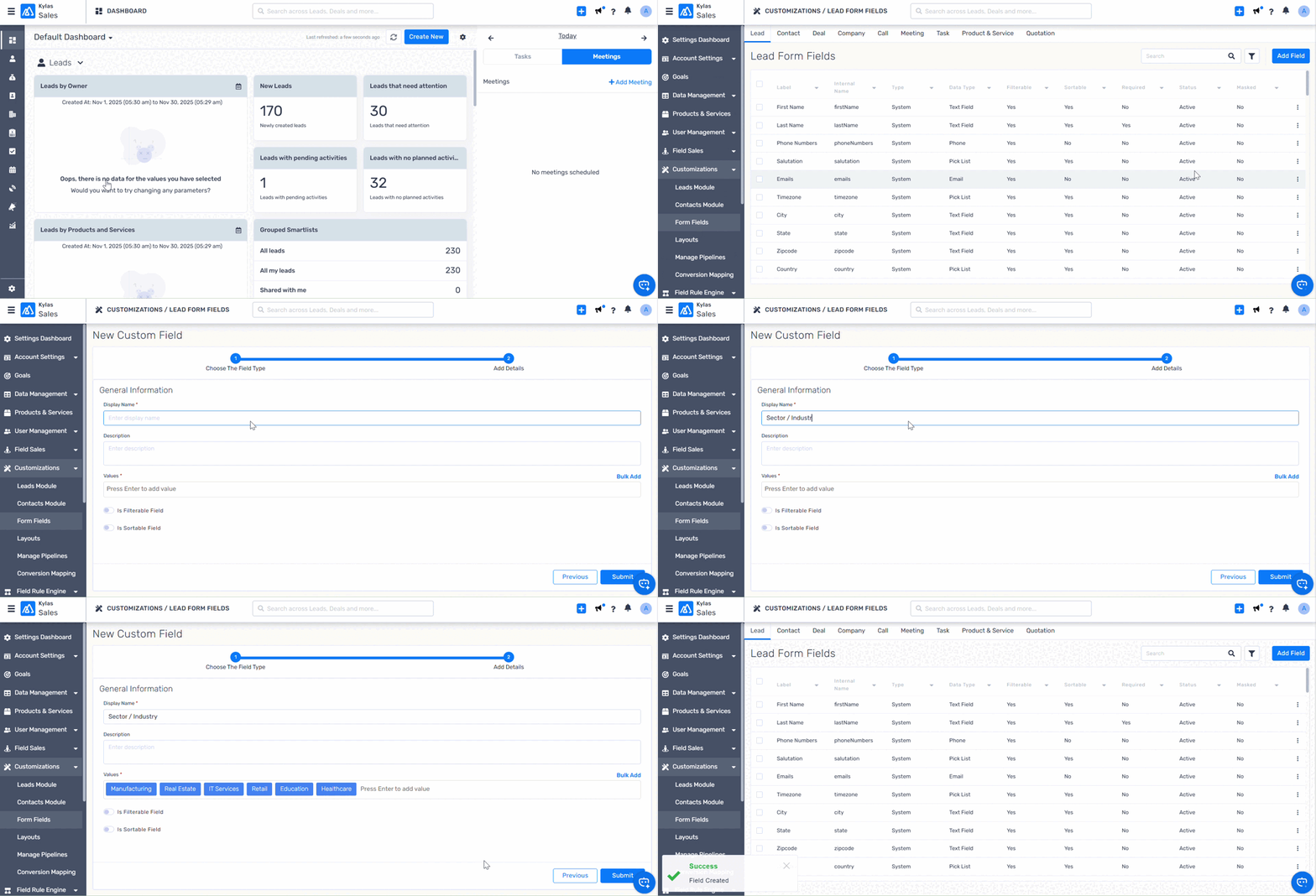
Step 1: Navigate to Form Fields
Log in to your Kylas CRM account (app.kylas.io).
-
Go to CRM Settings (top-right corner).
-
Select Customization from the left menu.
-
Click on Form Fields.
Choose the module where you want the picklist field (Example: Lead/Deal/Company/etc.).
Step 2: Create a Picklist Field
-
Click Add Field.
-
Choose Picklist as the field type.
-
Enter the Field Name (Example: “Industry”, “City”, “Product Category”).
Step 3: Add Values in Bulk
-
Click on the option Add in Bulk under the picklist values section.
A text box will appear where you can paste or type multiple values.
Step 4: Enter Values Using Comma Separator
-
Add multiple values separated by commas.
Example:
-
Each word or phrase separated by a comma will become a separate picklist option.
Step 5: Save the Field
-
After entering your values, click Save.
-
The new picklist field with bulk values will now be available in the selected module.
-
Use Cases
| Use Case | Description |
|---|---|
| Industry List | Add 50+ industry names to the Company or Lead module in one go. |
| City Database | Bulk upload city names for leads, branches, or customer locations. |
| Product Categories | Quickly create product/service classifications. |
| Lead Sources | Add multiple marketing channels at once (Google Ads, Facebook, Instagram, Referral, Website, etc.). |
| Designation List | Add job roles like CEO, Manager, Executive, etc. in one click. |
Benefits
| Benefit | Description |
|---|---|
| Saves Time | Eliminates manual entry by adding 10, 50, or 100 values at once. |
| Reduces Errors | Bulk entry ensures correct and consistent data formatting. |
| Easy CRM Setup | Highly useful during onboarding or module restructuring. |
| Cleaner Data | Standard picklist options avoid spelling errors or duplicates. |
| Improves User Experience | Users get ready-made, well-structured dropdowns. |
Conclusion
Adding picklist values in bulk is a powerful and time-saving feature in Kylas CRM. It helps administrators quickly populate dropdown fields with large datasets, ensuring consistency and improving data quality across the CRM.
Whether you're migrating from another system or setting up Kylas for the first time, bulk picklist value entry makes configuration fast, accurate, and effortless.
Related Articles
How Forex Works in Kylas CRM
In today’s global marketplace, businesses often deal with customers, vendors, and partners across different countries and currencies. To support this, Kylas CRM offers a built-in Forex (Foreign Exchange) feature that enables you to manage ...How to delete the notes in bulk?
Managing your CRM data includes regularly cleaning up irrelevant or outdated Notes. With Kylas CRM, users can now delete Notes in bulk without manually removing them one by one. This saves time and ensures cleaner data management across your system. ...How Reporting Managers Can Nudge a Goal in Kylas CRM
In sales management, setting goals is just the beginning—the real challenge lies in ensuring they are achieved. In Kylas CRM, reporting managers have the powerful capability to “nudge” assigned goals. Nudging acts as a soft reminder or encouragement ...How to assign leads to users in round-robin mode, in Kylas CRM?
This article covers the steps to be followed and the pre-requisites for assigning leads to users in a round-robin fashion, using the webhooks feature of the workflows. Prerequisites Permissions: Any user with create permission on Workflow Module. ...How to Set Up Notification Settings in Kylas CRM
How to Set Up Notification Settings in Kylas CRM Kylas CRM empowers every user to tailor their notification settings according to their personal preferences. By allowing users to enable or disable specific system notifications, the platform helps ...