How to Set Up Notification Settings in Kylas CRM
How to Set Up Notification Settings in Kylas CRM
Kylas CRM empowers every user to tailor their notification settings according to their personal preferences. By allowing users to enable or disable specific system notifications, the platform helps maintain a streamlined and efficient workflow.
This article provides a step-by-step guide to managing notification settings in Kylas CRM, so users can easily customize alerts to stay updated on what matters most to them.
Table of Contents
- Introduction
-
Prerequisites
Step-by-Step Guide to Configure Notification Settings
-
Navigate to Notification Settings
-
Overview of Available Notifications
-
Enable or Disable Notifications
-
Save Your Preferences
-
-
Use Cases
-
Benefits of Personalized Notification Settings
-
Conclusion
Overview
Notifications keep users informed about important activities such as deal updates, task reminders, and CRM system events. Since different users have different roles and preferences, Kylas CRM provides an option for users to manage their own notification settings individually.
By configuring notification settings, users can choose which alerts to receive and which to mute, thereby optimizing their productivity and focus.
Prerequisites
Before setting up notification preferences:
-
You must have an active Kylas CRM user account.
-
Access to the CRM with at least standard user permissions (no special admin privileges required).
-
Step-by-Step Guide to Configure Notification Settings
Step 1: Log In and Navigate to Account Settings
- Log in to your Kylas CRM account atapp.kylas.io
-
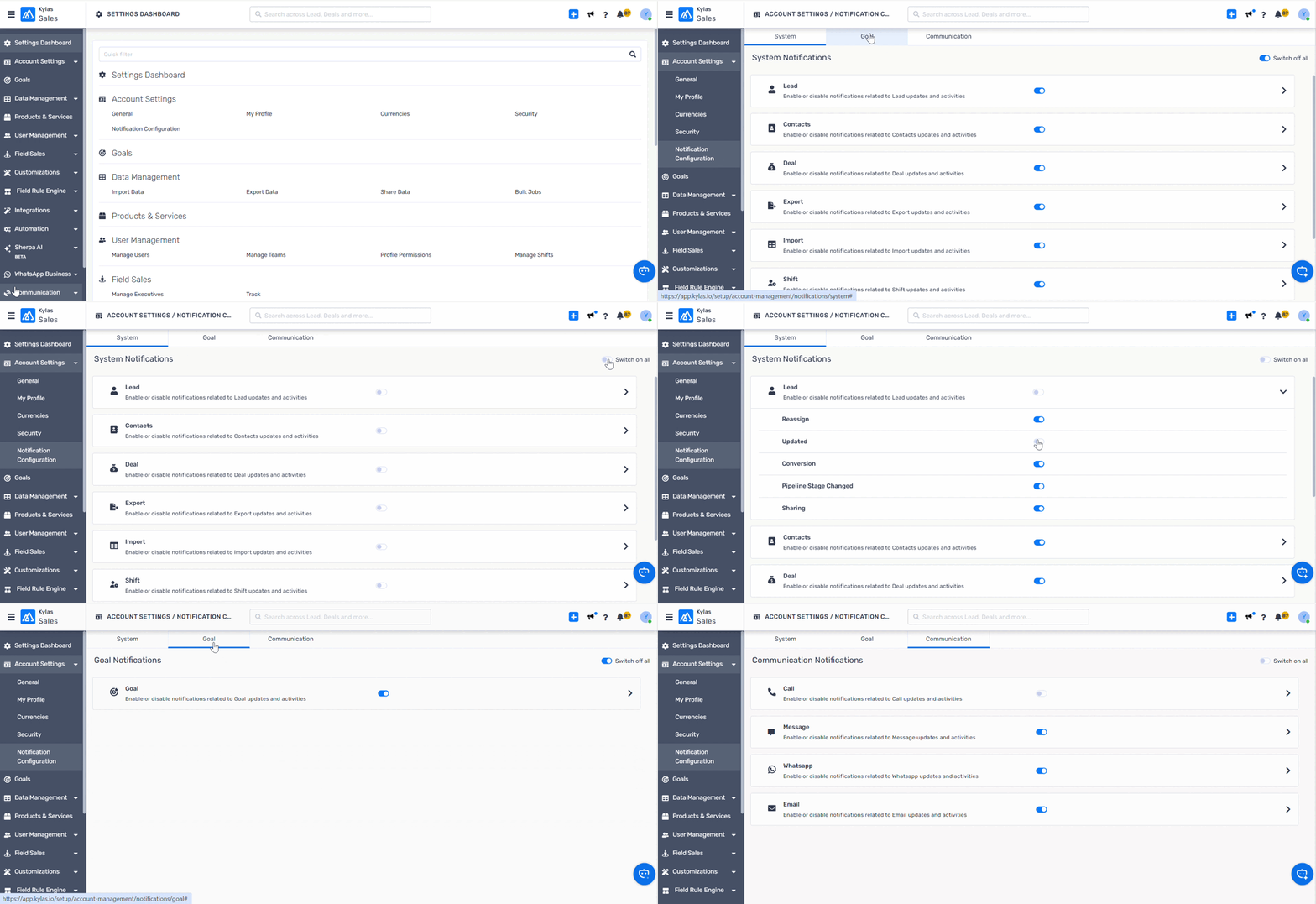
Select CRM Settings then Account Settings from the dropdown menu.
Step 2: Open Notification Settings
- In the Account Settings panel, locate and click on Notification Settings.
-
This section displays all system-generated notifications related to your CRM activities.
Step 3: Review Available Notifications
You will see a categorized list of all notifications you can receive, such as:
-
Deal updates (i.e- contacts added)
-
Task reminders
-
Call logs and meeting notifications
-
Comments and mentions
-
-
Each notification type typically has a toggle switch.
Step 4: Enable or Disable Notifications
To enable a notification, toggle the switch to ON.
-
To disable a notification, toggle the switch to OFF.
-
Changes apply only to your user account — other users can customize their own notifications independently.
Step 5: Save Your Preferences
-
Your notification preferences are now updated and will be reflected immediately.
Use Cases
| User Role | Notification Preferences | Purpose/Benefit |
|---|---|---|
| Sales Representatives | Enable notifications for new deals assigned and deal stage changes | Stay updated on sales pipeline and progress |
| Team Leads | Enable task reminders and system alerts | Track team progress and important announcements |
| Support Staff | Disable non-essential marketing notifications | Focus on customer support tickets without distractions |
| Remote Users | Enable push notifications for calls and meetings | Never miss critical updates during remote work |
Benefits
| Benefit | Explanation |
|---|---|
| Improved Focus | Avoid notification overload by receiving only relevant alerts. |
| Increased Productivity | Prioritize notifications that impact your daily workflow. |
| User Autonomy | Each user controls their own settings without admin intervention. |
| Reduced Distractions | Mute less important notifications during critical work periods. |
| Better Collaboration | Stay informed about key team activities and mentions only. |
Conclusion
Setting up personalized notification settings in Kylas CRM empowers users to manage their information flow effectively. By selectively enabling or disabling system notifications, users can tailor the CRM experience to suit their individual roles and preferences, enhancing productivity and reducing distractions.
Regularly reviewing and updating your notification preferences ensures you stay optimally informed about the activities that matter most to you.
Related Articles
How Forex Works in Kylas CRM
In today’s global marketplace, businesses often deal with customers, vendors, and partners across different countries and currencies. To support this, Kylas CRM offers a built-in Forex (Foreign Exchange) feature that enables you to manage ...How Reporting Managers Can Nudge a Goal in Kylas CRM
In sales management, setting goals is just the beginning—the real challenge lies in ensuring they are achieved. In Kylas CRM, reporting managers have the powerful capability to “nudge” assigned goals. Nudging acts as a soft reminder or encouragement ...How to set data sharing rules in Kylas?
Kylas CRM provides its users with the option to collaborate on leads, contacts, deals, and tasks. Using the Sharing Rules feature in Kylas CRM, a team lead/manager can set rules to automatically share the entities created by him with a specific ...How to assign leads to users in round-robin mode, in Kylas CRM?
This article covers the steps to be followed and the pre-requisites for assigning leads to users in a round-robin fashion, using the webhooks feature of the workflows. Prerequisites Permissions: Any user with create permission on Workflow Module. ...How to Add Bulk Values in Picklist Fields in Kylas CRM
How to Add Bulk Values in Picklist Fields in Kylas CRM Managing picklist fields efficiently is crucial for maintaining clean, structured, and standardized CRM data. When dealing with large datasets—such as product categories, cities, industries, or ...